Sydney's picks · October 13, 2026
If you're trying to choose an AI tool, start with something you actually want help with. By the end of this guide, you'll have a starting choice and a simple way to check whether it works for you.
This changes all the time. These are my preferences from using the tools, as of the date above. Your tasks and results may be different.
Read the text version
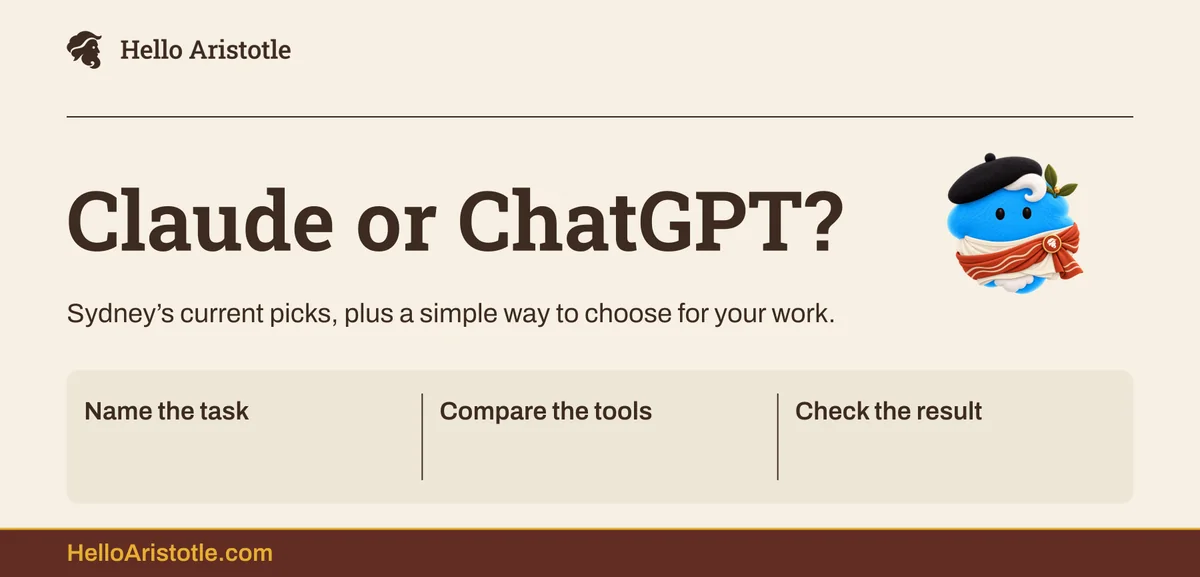
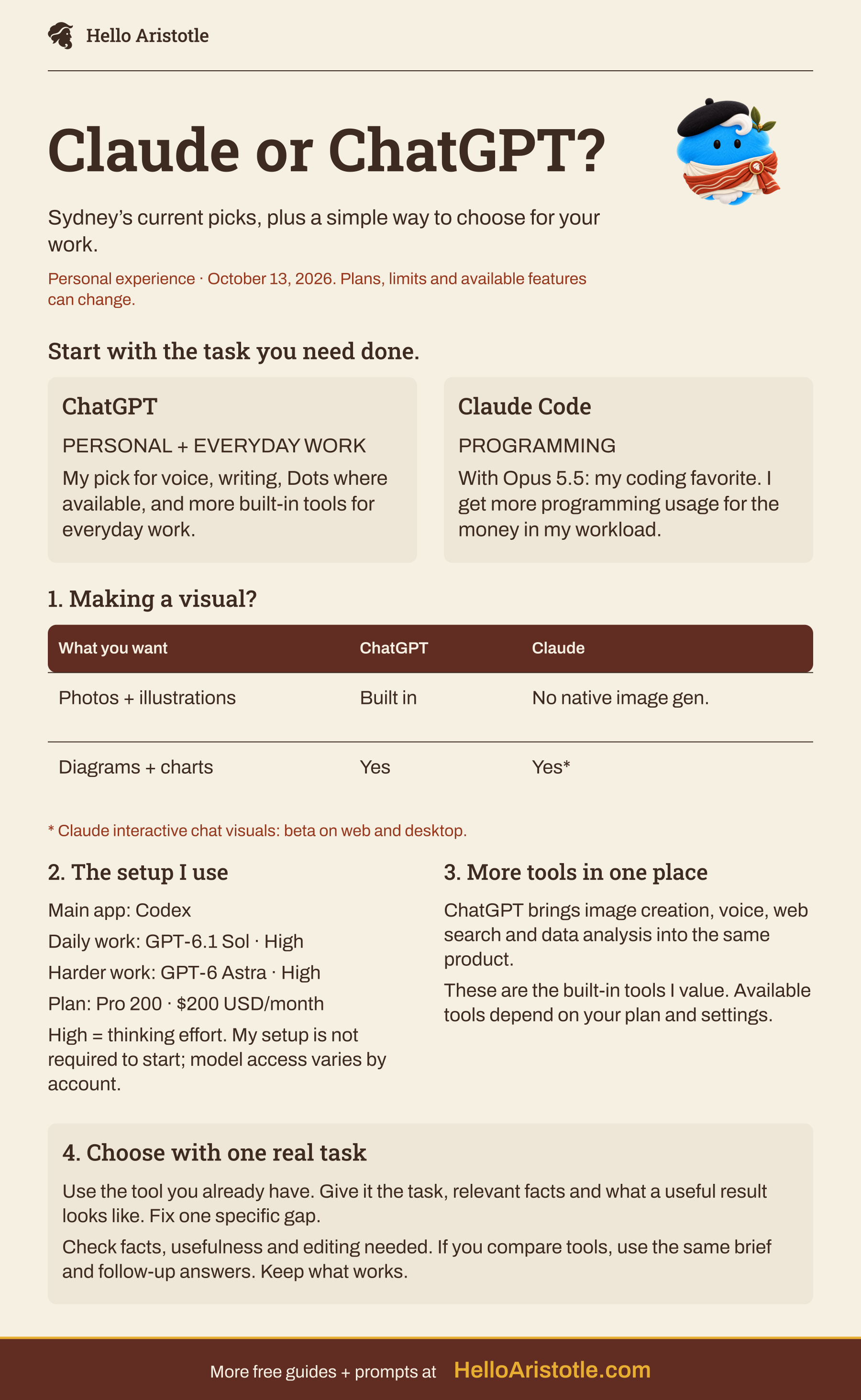
Claude or ChatGPT?
- Sydney’s current picks, plus a simple way to choose for your work.
- Personal experience · October 13, 2026. Plans, limits and available features can change.
Start with the task you need done.
- PERSONAL + EVERYDAY WORK
ChatGPT
- My pick for voice, writing, Dots where available, and more built-in tools for everyday work.
- PROGRAMMING
Claude Code
- With Opus 5.5: my coding favorite. I get more programming usage for the money in my workload.
1. Making a visual?
- WHAT YOU WANT
- CHATGPT
- CLAUDE
- Photos + illustrations: ChatGPT: Built in. Claude: No native image gen.
- Diagrams + charts: ChatGPT: Yes. Claude: Yes*.
- * Claude interactive chat visuals: beta on web and desktop.
2. The setup I use
- Main app: Codex
- Daily work: GPT-6.1 Sol · High
- Harder work: GPT-6 Astra · High
- Plan: Pro 200 · $200 USD/month
- High = thinking effort. My setup is not required to start; model access varies by account.
3. More tools in one place
- ChatGPT brings image creation, voice, web search and data analysis into the same product.
- These are the built-in tools I value. Available tools depend on your plan and settings.
4. Choose with one real task
- Use the tool you already have. Give it the task, relevant facts and what a useful result looks like. Fix one specific gap.
- Check facts, usefulness and editing needed. If you compare tools, use the same brief and follow-up answers. Keep what works.
- More free guides + prompts at
- HelloAristotle.com
My current picks
Personal and everyday work: ChatGPT
For personal, nontechnical use, ChatGPT is my preference. I like the voice experience in ChatGPT and Codex, I think the writing is slightly better, and the small quality-of-life features add up. Dots are another reason I like it for ongoing personal help.
In my experience, Astra is very good at computer and browser tasks. GPT-6.1 Sol is also strong at those tasks, though Astra is my first choice for harder work.
Dots run as ongoing agents, with the apps you choose to connect. Availability depends on your plan, region, and rollout. You don't need a Dot for the exercise below. OpenAI's Dot guide
For my everyday work, ChatGPT has more of the built-in tools I want in one place: image creation, voice, web search, and data analysis. Available tools depend on your plan and settings. ChatGPT's tools
Programming: Claude Code
For programming, I currently prefer Claude Code. Opus 5.5 is the best programming model in my experience right now. I also find I get more programming usage for the money with Claude.
That's my experience with my workload, not a promise about your allowance or results. The companies count usage differently, and the task and model affect how quickly you use it. Check the limits on the plan you're considering. Claude plans · ChatGPT Pro tiers
Claude Code is a coding tool. It is included with Claude's Pro and Max subscriptions, with usage limits shared across Claude and Claude Code. Claude Code plan guide · Official Opus information
If you want to make a visual
Claude can make diagrams and charts. Its interactive visuals in chat are currently a beta feature on Claude web and desktop. It doesn't have built-in photo or illustration generation like ChatGPT. Making a flowchart and generating a photograph are different capabilities. Claude's image and visual capabilities
ChatGPT can do both: generate photos and illustrations, and create diagrams and data charts. If you need a photo-style image as part of your work, that is a practical reason to choose ChatGPT. ChatGPT Images · Charts and data analysis
The setup I actually use
I use Codex as my main app, signed in through ChatGPT. Inside the app, I choose a model for the task:
- Main app: Codex, under my ChatGPT account
- Day-to-day tasks: GPT-6.1 Sol, with High thinking effort
- Difficult or important tasks: GPT-6 Astra, with High thinking effort
- Subscription: ChatGPT Pro 200, $200 USD per month
The app is where I work. The model is the AI I choose inside it. High is a setting for how much thinking effort it uses.
This is my setup, not the starting plan you need to buy. GPT-6.1 Sol is a Work/Codex option; you may not see it in an ordinary ChatGPT chat. Available options depend on your account. OpenAI's Work and Codex guide · GPT-6 Astra
OpenAI currently lists Pro 200 at $200 USD per month. Usage allowances can differ by tier and account transition, so the price alone doesn't tell you how much work you'll get. Current Pro details
Try one real task before changing tools
Before you start
Use an AI chat you already have access to. Bring one small task and the facts it needs. This exercise works in a normal chat; it does not need access to your folders, email, or accounts. Use information you're comfortable putting into that tool.
Pick something you can check, such as drafting a short email or turning rough notes into a plan.
For a programming comparison, paste the relevant code into the brief and ask for one small proposed change. Apply it yourself in a project copy and run a test you understand. Use this route only if you already know how to apply and check code changes.
1. Give it a clear brief
Replace the three bracketed fields, then paste the whole prompt:

Hello Aristotle
Try one real task
Help me complete one small task.

My task: [What I want done.]
Facts or material to use: [Paste the relevant details or text.]
A useful result would be: [Who it is for, the format, and what it must get right.]

Use only the information I provide. If an important detail is missing, ask me one short question at a time. Don't invent names, numbers, facts, or promises.

If the task is too broad or needs access you don't have, explain the limitation simply and help me choose a smaller useful result. Then make one draft I can review. Keep it as short as the task allows.

After the draft, list any assumptions or details I should check. Do not send, publish, or change anything outside this conversation.
Fictional example: “Draft a friendly email to a customer. Their package is two days late; we expect it Friday. I need fewer than 100 words, an apology, and no invented refund promise.” Add the customer's name only if you want it used.
2. Check it and fix one specific gap
- Are the facts right, with no invented details?
- Does it give you the result you asked for?
- Can you use it after a few small edits?
If it misses, tell it exactly what is wrong and supply the missing fact or an example. Try one revision. For more help, use Fix a disappointing AI answer.
3. Keep what worked, or compare fairly
If the result works, save the brief and the useful answer in a note or document. Next time, paste the brief again with fresh facts. A new chat may not remember it.
If you already have access to the other tool, give it the same brief, material, and answers to follow-up questions. Compare the usable result and how much correcting it took. Check code with your own tests; confident explanations alone don't show that it works.
You don't need two paid subscriptions to do this. Start with what you have and switch when another tool solves a problem you can name.
If you'd like help choosing a tool for your work, bring one real task to a free 20-minute AI call.