A few small files give AI a starting point for understanding you and your company. The templates begin blank. You choose what belongs in them, and a setup interview helps you fill in the useful details.
Before you start
Use Codex, Claude Code, or a Work/Cowork setup that can read and save files in a folder you choose. An ordinary chat can help you plan, but saving and reusing this workspace requires file access. No coding is needed.
Choose a private folder and only the files or connections you are comfortable allowing the app to use. Access features and paid-plan requirements vary by app. If you have only used chat threads, see Go beyond ChatGPT and Claude chats for one folder-based workflow.
Your workspace at a glance
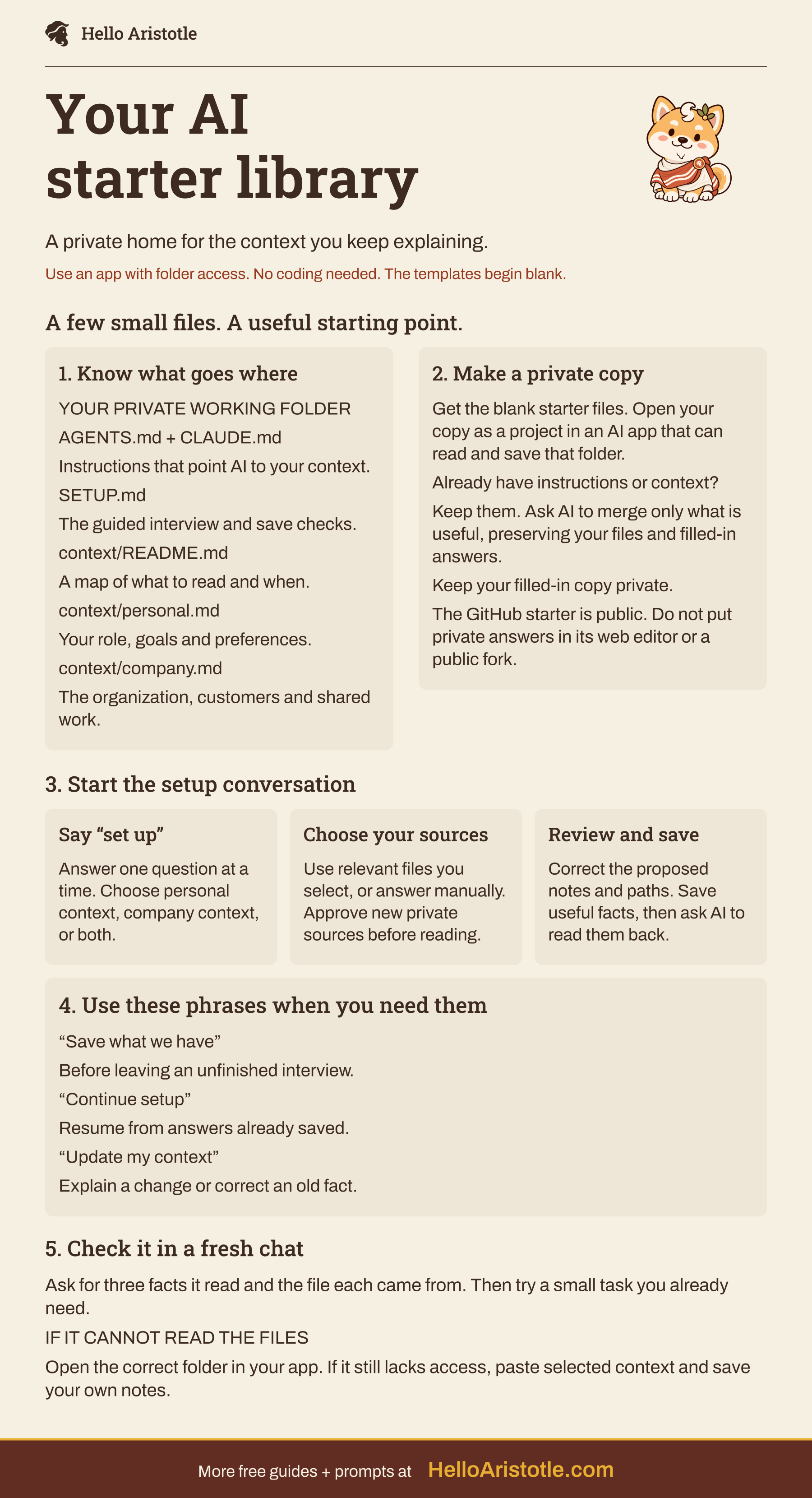
Read the text version
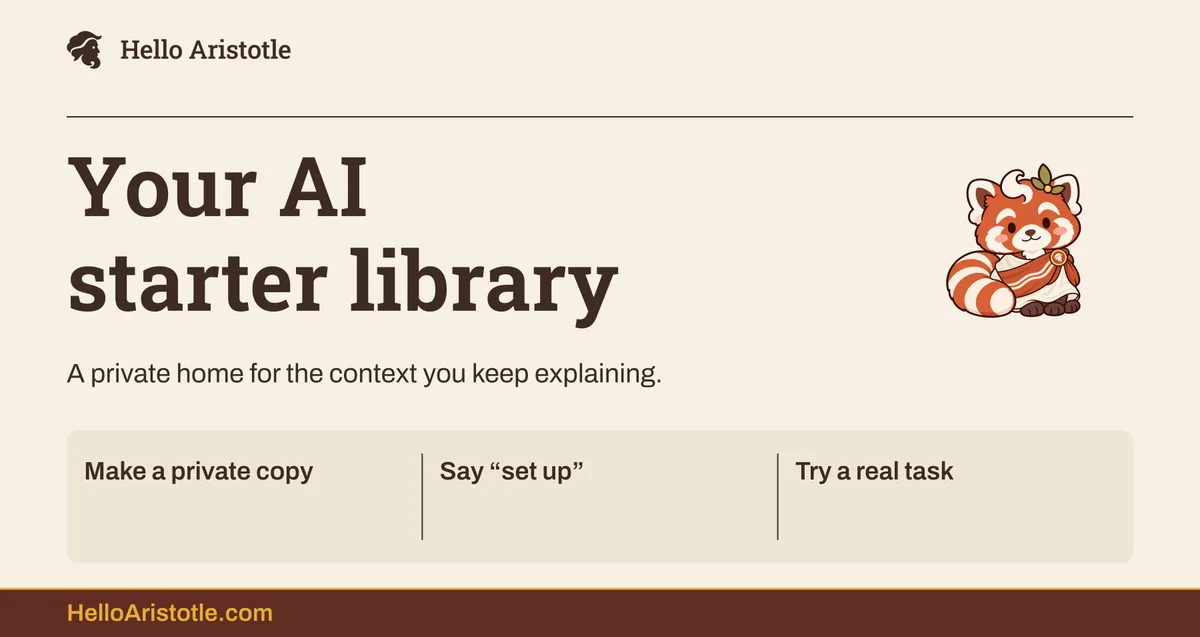
Your AI starter library
- A private home for the context you keep explaining.
- Use an app with folder access. No coding needed. The templates begin blank.
A few small files. A useful starting point.
1. Know what goes where
- YOUR PRIVATE WORKING FOLDER
- AGENTS.md + CLAUDE.md
- Instructions that point AI to your context.
- SETUP.md
- The guided interview and save checks.
- context/README.md
- A map of what to read and when.
- context/personal.md
- Your role, goals and preferences.
- context/company.md
- The organization, customers and shared work.
2. Make a private copy
- Get the blank starter files. Open your copy as a project in an AI app that can read and save that folder.
- Already have instructions or context?
- Keep them. Ask AI to merge only what is useful, preserving your files and filled-in answers.
- Keep your filled-in copy private.
- The GitHub starter is public. Do not put private answers in its web editor or a public fork.
3. Start the setup conversation
Say “set up”
- Answer one question at a time. Choose personal context, company context, or both.
Choose your sources
- Use relevant files you select, or answer manually. Approve new private sources before reading.
Review and save
- Correct the proposed notes and paths. Save useful facts, then ask AI to read them back.
4. Use these phrases when you need them
- “Save what we have”
- Before leaving an unfinished interview.
- “Continue setup”
- Resume from answers already saved.
- “Update my context”
- Explain a change or correct an old fact.
5. Check it in a fresh chat
- Ask for three facts it read and the file each came from. Then try a small task you already need.
- IF IT CANNOT READ THE FILES
- Open the correct folder in your app. If it still lacks access, paste selected context and save your own notes.
- More free guides + prompts at
- HelloAristotle.com
Get your starter setup
The setup prompt walks you through bringing the starter files into your private AI workspace. Then say “set up” to begin a simple interview, one question at a time.
A guided setup bonus for subscribers
Get the setup prompt + practical AI tips
Get the prompt that helps you set up your AI Starter Library. Sign up for occasional AI tips and resources when we start sending them.
Set up your private workspace
Choose a private working folder in an app that can read and save files there. Follow the setup prompt, then ask the app to explain how AGENTS.md and CLAUDE.md point to context/ before it makes changes. Select only sources you are comfortable sharing.
The templates start blank. Add only information you have checked, keep personal and company details in the right place, and review every suggested edit. If you already use another folder structure, ask how to adapt the starter while preserving your existing files.
Make it yours
For personal or company context, use Give AI the context your work needs to help AI review sources you choose, ask useful follow-up questions, and draft a profile for you to check.
For a routine you repeat, try Go beyond ChatGPT and Claude chats to build it from your own task and test it with fresh facts.
Quick fixes
My app cannot open the folder.
Make sure the app has access to that folder. You can still plan the content in an ordinary chat, then save it yourself; using a saved workspace requires an app that can read and save files. Stop if a permission request names files or locations you did not choose.
Does the library give AI access to email?
No. The public files contain instructions and blank templates. Any document or account connection is separate; the app should use only sources you authorize.
Will AI remember all of this automatically?
No. The files hold context, but a new task can use them only if the app can read the folder and loads the relevant files. Ask which files it used, then check and correct the context yourself.
Bring it into your team
Use the blank company template in context/ only in a folder your organization allows. Agree who can edit it and who checks it for accuracy. Our guide to AI training for employees explains how to turn access to tools into work people can actually use.